Use your TruCentive reward to request a new reloadable virtual or physical Mastercard, or add funds to an existing eligible reloadable Mastercard card. This guide walks you through selecting your reward, accessing a virtual card, and saving the account number needed for future reloads.
Claim a new Virtual Mastercard
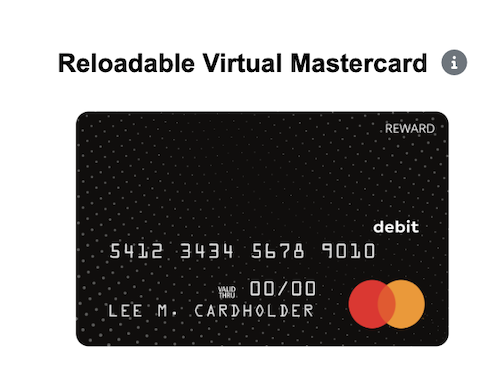
1. Select Reloadable Virtual Mastercard on your reward selection page.
2. Enter the USD amount you want to redeem, then select Choose Value.
3. Review the amount and total. Select Confirm to continue, or Change to adjust your selection.
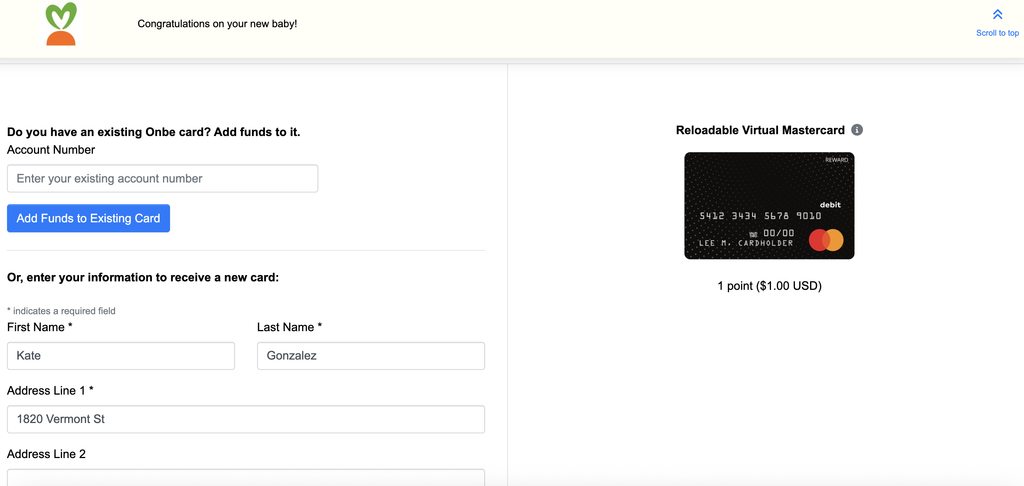
4. Under “Or, enter your information to receive a new card,” enter your first and last name, address, city, state, ZIP code, phone number, and email. Complete all fields marked with an asterisk.
5. Select Save. Review your order information and use change if you need to correct it.
6. Select Complete Order. Your confirmation page displays an Activation Code and an Account Number.
Save your Account Number. This is the number used to add future rewards to the same card. It is listed separately from the activation code and the card number used for purchases.
Activate and view your virtual card
1. The reloadable card does not require an activation code
2. Follow the MyPaymentVault prompts to validate your email address. Review the prepaid card agreement, scroll to the bottom, and accept the terms and conditions to continue.
3. Select Access My Card. Follow the prompts to create and confirm your PIN.
4. On the dashboard, check your Available Balance. Select View Card Details to display the information needed to use your card.
The dashboard also displays options to add the card to Apple Pay, Google Pay, or Samsung Pay. Follow the prompts for the wallet you want to use.
Request a new Physical Mastercard
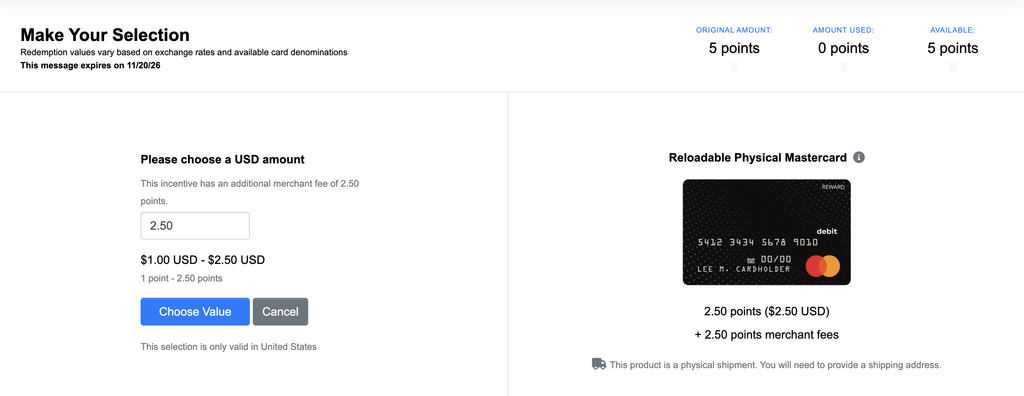
1. Select Reloadable Physical Mastercard on your reward selection page.
2. Enter the amount you want loaded onto the card, then select Choose Value. Review any merchant fee shown in addition to the card value before confirming.
3. Select Confirm. Under the new card section, enter your name, shipping address, phone number, and email. Complete all required fields.
4. Select Save, then review your shipping information. Use change to correct any details before placing the order.
5. Select Complete Order. The confirmation page shows the order status, Account Number, and shipping details.
6. Save your Account Number for future reloads. When the physical card arrives, follow the activation instructions provided with it.
Physical card fees: A $2.50 merchant fee in applies to all new Physical Cards
Add a new reward to an existing card
Have the Account Number from your original TruCentive card confirmation ready before starting. To reload the existing card, use the existing card section rather than completing the new card form.
1. Open your new TruCentive reward link and select the applicable reloadable Mastercard option.
2. Enter the amount you want to add. Select Choose Value, review the amount, and select Confirm.
3. Find “Do you have an existing Reloadable Mastercard? Add funds to it.”
4. Enter your saved Account Number in the existing card field.
5. Select Add Funds to Existing Card.
6. Once the reload completes, check your card dashboard for the updated Available Balance and the new loading entry under Recent Transactions. For a virtual card, select Show Card Info from the confirmation page to open the card portal.
Example: If you add $2.00 to an existing virtual card with a $1.00 balance, the new balance is $3.00. Check Recent Transactions to confirm the new load.