
Creating a connection between your Qualtrics account and TruCentive is simple. It requires no special Qualtrics permissions and incurs no additional costs.
Steps:
- Contact Support@trucentive.com and request a connection. Provide your trucentive user name and account.
- You will receive a custom email address to enable rewards from any project. Note: Keep your integration email address secure, as it is used to deliver rewards.
- In Qualtrics, create an Email Trigger (classic surveys) or an Email Action (new Actions framework). Both let you automatically send an email whenever a survey response is recorded.
- Test your connection with your TruCentive project with Test Mode “ON”
Qualtrics Email Trigger Setup
Using Actions (recommended / newer Qualtrics)
- Open your survey
- Go to Actions (top menu)
- Click + Create Action
- Choose Survey Response
- Under Conditions, choose when it should fire:
- Every response
- Only completed responses
- Only when the criteria match (e.g., a question equals “Yes”)
- Add a Task → Email
- Configure:
✓ To / CC / BCC
✓ Subject
✓ Message body
Do not add additional information to your trigger email.
Your message body should look exactly like this:
—————————————————-
Data List
Project: project-426bb479-0f17-4e9e-9c3f-edc85a5b4e45
First: Jim
Last: Meyer
Amount: 15
Email: surveytaker@example.com
—————————————————-
Typically, the insertion values in your Qualtrics email are:
${m://FirstName}
${m://LastName}
${m://Email}
Legacy Email Trigger (older version)
If Actions is not enabled:
Go to Survey → Tools → Triggers → Email Triggers
- Click Add Trigger
- Enter email details
This also fires on every response unless you set conditions.
- Configure:
✓ To / CC / BCC
✓ Subject
✓ Message body
Do not add additional information to your trigger email.
Your message body should look exactly like this:
—————————————————-
Data List
Project: project-426bb479-0f17-4e9e-9c3f-edc85a5b4e45
First: Jim
Last: Meyer
Amount: 15
Email: surveytaker@example.com
—————————————————-
Typically, the insertion values in your Qualtrics email are:
${m://FirstName}
${m://LastName}
${m://Email}
Options
| Use case | How to set it |
|---|---|
| Only send when survey is fully completed | Condition: Survey Finished = True |
| Send only when certain answers are selected | Condition: Question = Value |
| Send to a dynamic email collected in the survey | To: ${q://QID1/ChoiceTextEntryValue} |
| Send summary notifications daily instead of per response | Change Action to Daily Report |
TruCentive Account ID and Project ID
Your Account ID is found in the footer of your TruCentive account. When logged in, scroll to the bottom of the screen, and you will see your account ID in the lower left-hand corner. Your account ID starts with “acct-“
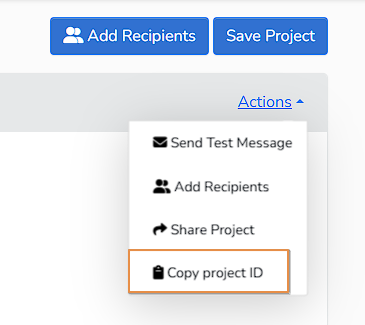
Your project ID can be found under the actions menu in your project:
Notes:
Make sure to add and set a sender in the setup tab, or the from address will be the integration identifier, which is not very recipient-friendly.
IMPORTANT: It is recommended that you turn ON “require approvals” in your project to ensure that survey rewards are sent only to the appropriate respondents. If you are using a generic link, an uninvited respondent or a bot may take your survey, and without approvals set to ON, deliveries will be sent automatically without oversight.