Your organization’s Teams admin must install the TruCentive application for your entire Microsoft Teams organization. Follow these steps:
- Log in as an administrator to your Microsoft Teams Admin Account: Microsoft Teams Admin Center.
- In the sidebar, navigate to Teams Apps > Manage Apps and search for “TruCentive.”
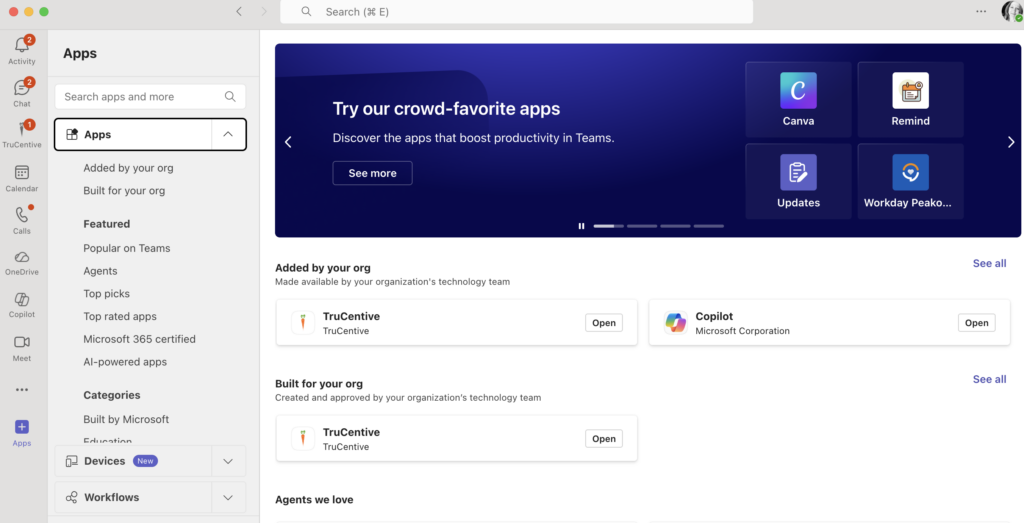
- Click on the TruCentive app and when the modal opens click on the “Add” button.

- From the sidebar navigation go to: Teams Apps > Setup Policies
- Under the “Manage policies” Section click on the “Global (Org-wide default)” policy.
- Under the Installed apps section click “+ Add apps” and then select the TruCentive app.
______________________________________________________________________________________
The TruCentive Microsoft Teams app is now installed for your organization. Below are the steps for a TruCentive Administrator account user to send their first envelopes through Microsoft Teams:
- Create a TruCentive project with a fixed value incentive amount.
- Login to Microsoft Teams
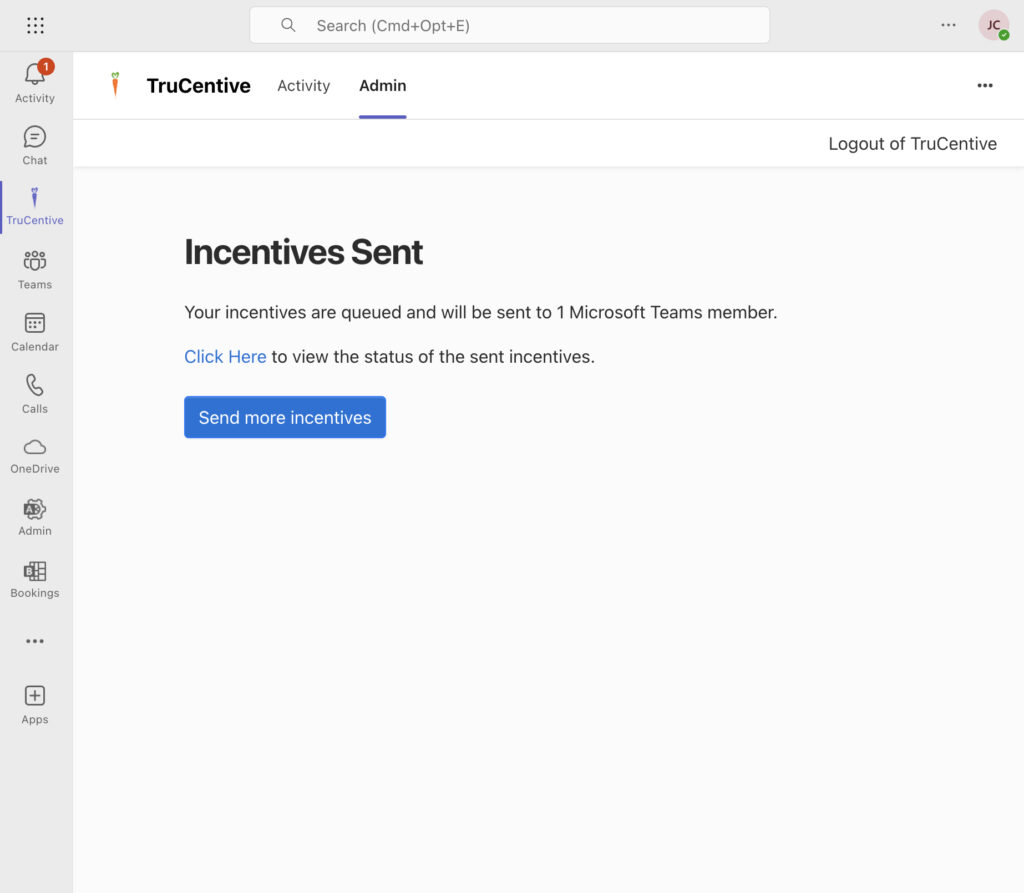
- Navigate to the TruCentive App either in the sidebar (if your Teams Admin pinned it there) OR in the ellipsis “…” sidebar. Then click on the “Admin” tab.
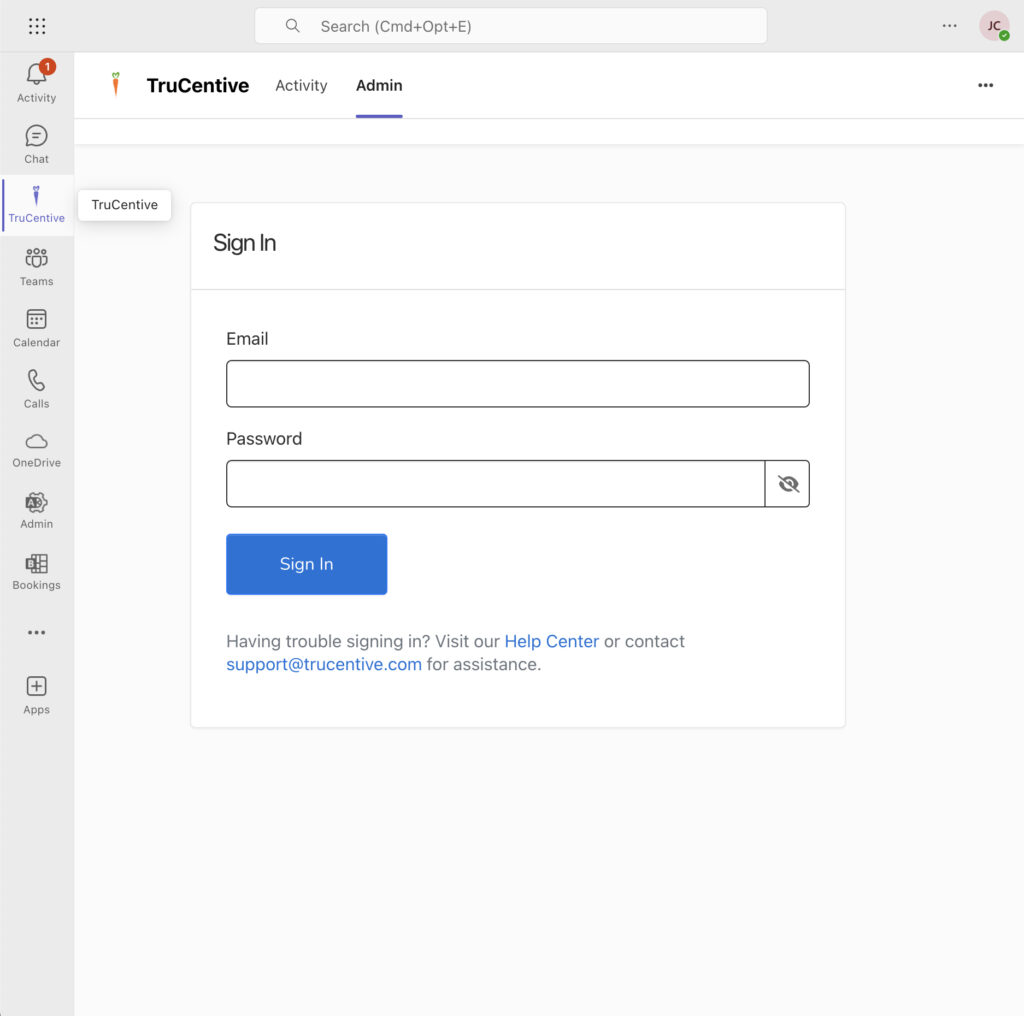
- Sign in to the Microsoft Teams TruCentive Admin app using your TruCentive Admin credentials.
- Select the project from which you want to send. Please note that only fixed-value projects are allowed.
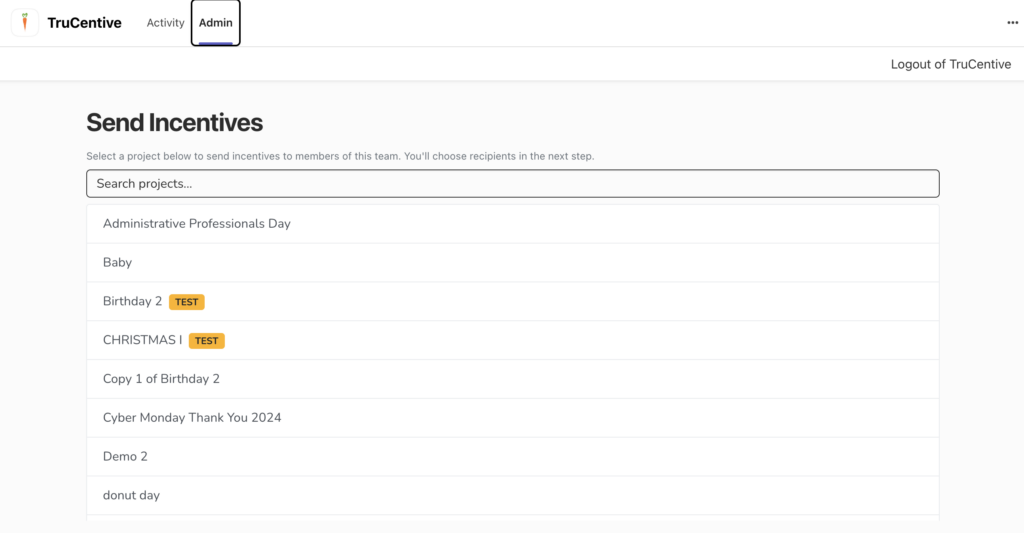
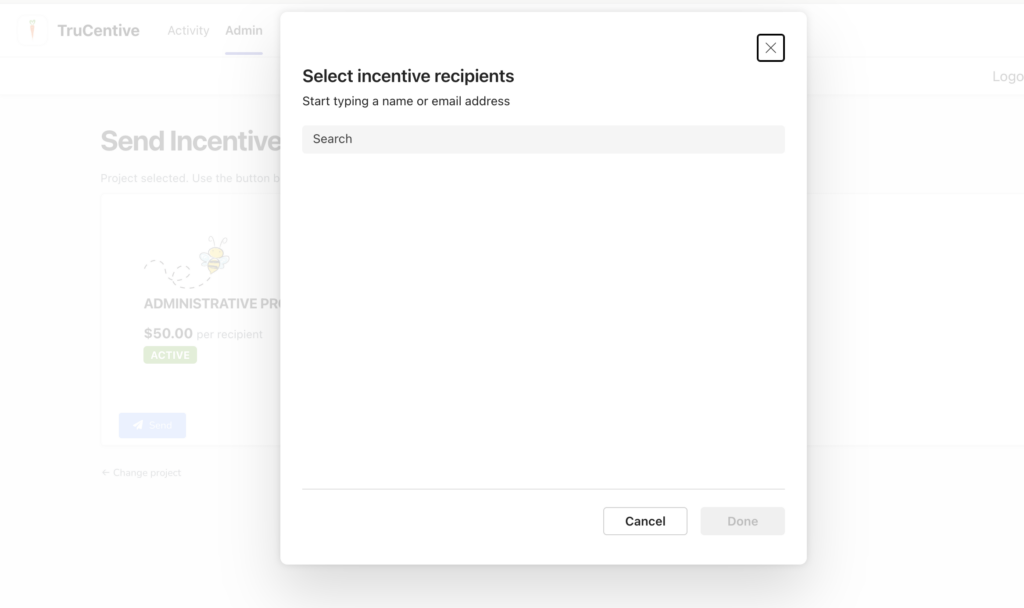
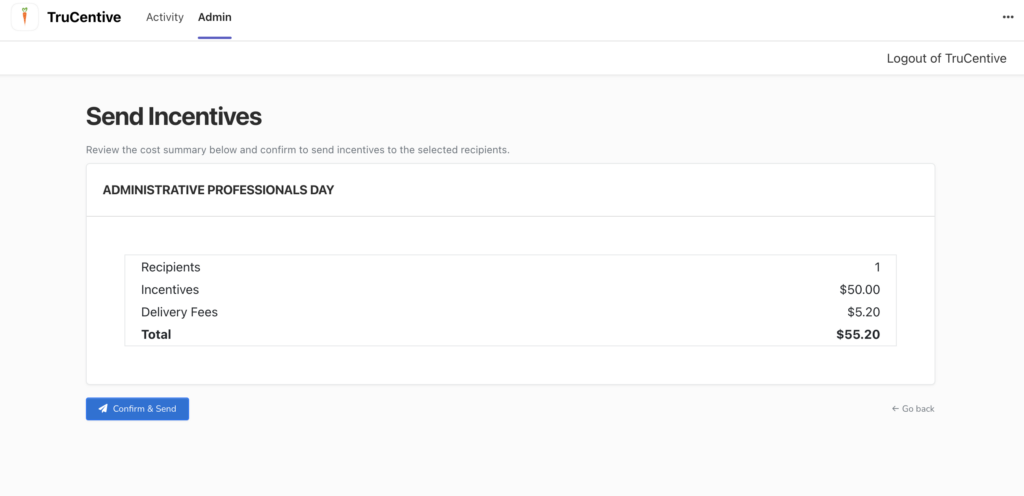
- Click “Send” and the “Select incentive recipients” box will pop up. You can type a name or email address to find the intended recipient, once selected, click Done. You will then be taken to the “Send Incentives” page where you can confirm the recipient information and the incentive value and click the “Confirm and Send” button.
- Note that projects in Test Mode will display “Test Mode” in parentheses next to the project name and will send Test Envelopes. When you’re finished testing, remember to change your project out of Test Mode.
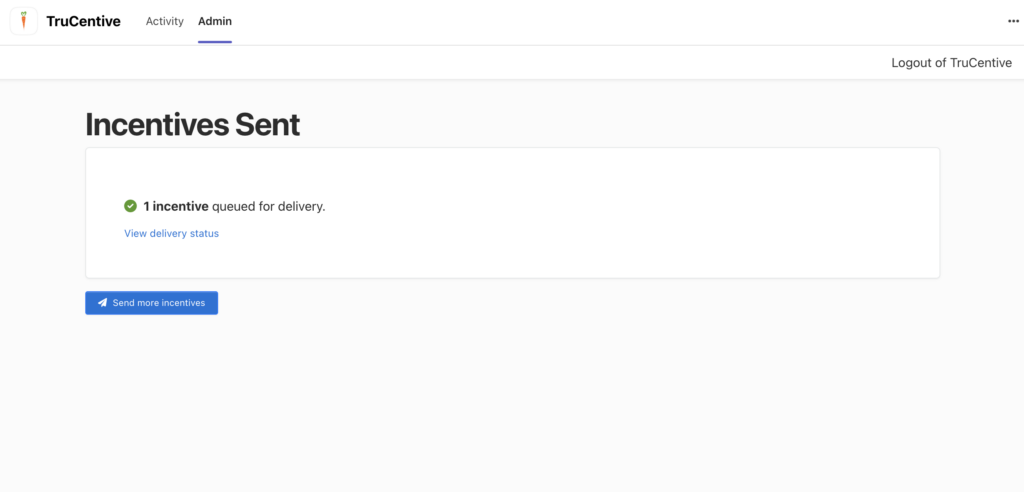
- Once your incentives are sent, you will see the “Incentives Sent” message. Your envelopes will appear in the Deliveries tab of your project, just like any other envelopes.